
Getting Started with Your First Brand
Creating a brand in AI Biz Wiz is the first step to understanding how AI search engines perceive your business. This tutorial walks you through the simple three-step process to set up your brand. Once complete, your first visibility scan starts automatically.
Step 1: Basic Info
When you click "Add Brand" from your dashboard, you'll be taken to the brand creation wizard. The first step asks for your core business information.
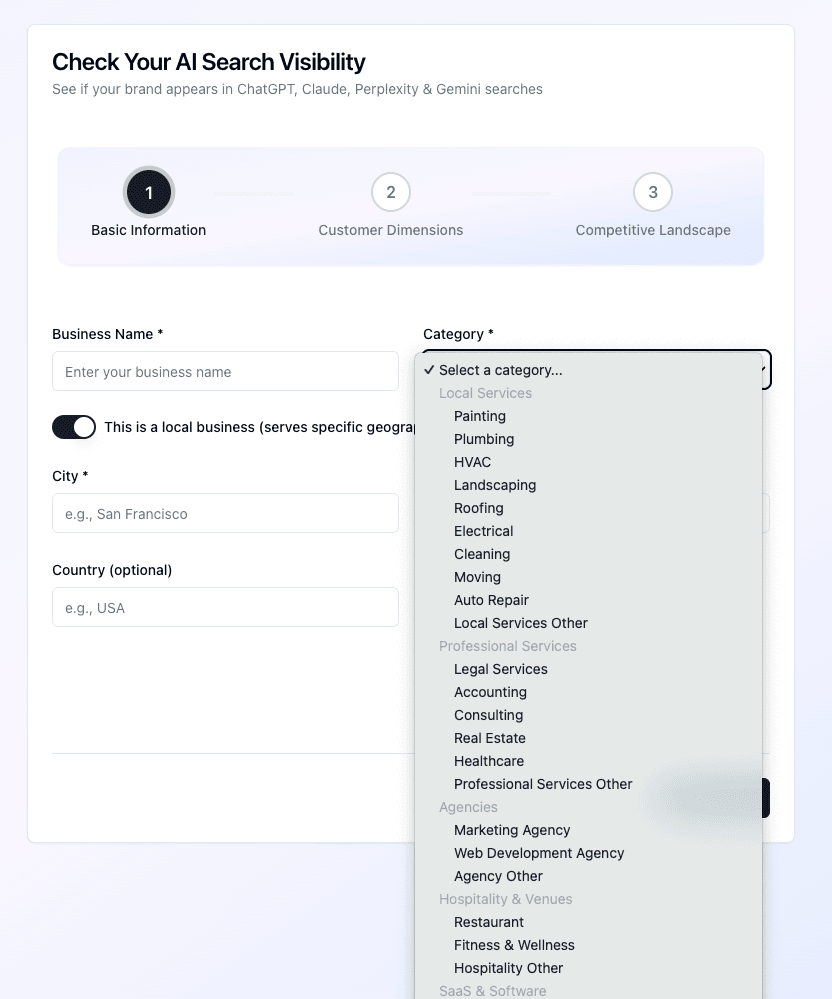 Step 1: Enter your business category and basic information
What to Enter
Business Name: Enter your official business name exactly as it appears online. This is how AI Biz Wiz will search for your brand across AI platforms.
Category: Select the category that best describes your business from the dropdown. Categories are organized by business type—local services, online businesses, consumer products, and more. Some categories have subcategories for more specific targeting.
Local Business Toggle: If you serve a specific geographic area, enable this toggle and enter your City, State, and optionally Country. This is crucial for "near me" type queries and helps focus the scan on location-relevant searches.
Tip: Be as specific as possible with your business name. If you're "Joe's Pizza" in Brooklyn, entering just "Joe's Pizza" might return results for multiple businesses with similar names.
Step 2: Customer Dimensions
The second step helps AI Biz Wiz understand your target audience. This step is optional and varies by category.
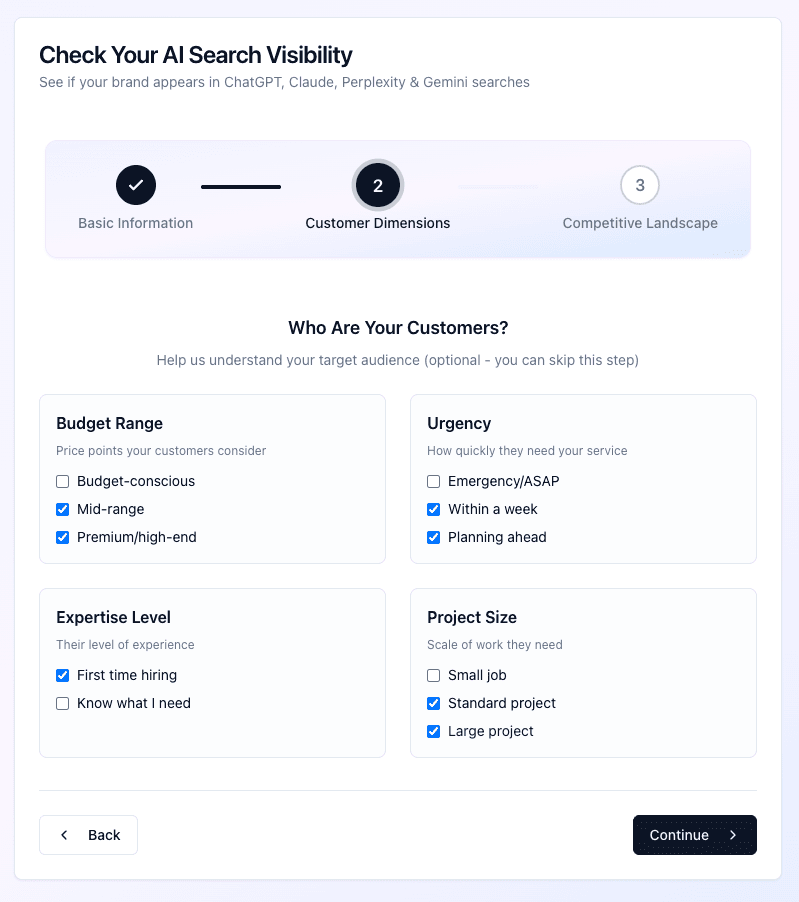 Step 2: Define your target customers
What Are Customer Dimensions?
Customer dimensions are characteristics of your ideal customers that help us generate more relevant search queries. For example, a fitness studio might specify whether they target beginners or advanced athletes, while a B2B software company might indicate their target company size.
When This Step Appears
Not all categories have customer dimensions. If your category doesn't require customer profiling, you'll see a message indicating no profiling is needed, and you can proceed to the next step.
If dimensions are available, select all that apply to your business. This is optional—you can skip this step if you're unsure.
Step 3: Competitive Landscape
The final step is where you define what makes your business unique and who your competitors are.
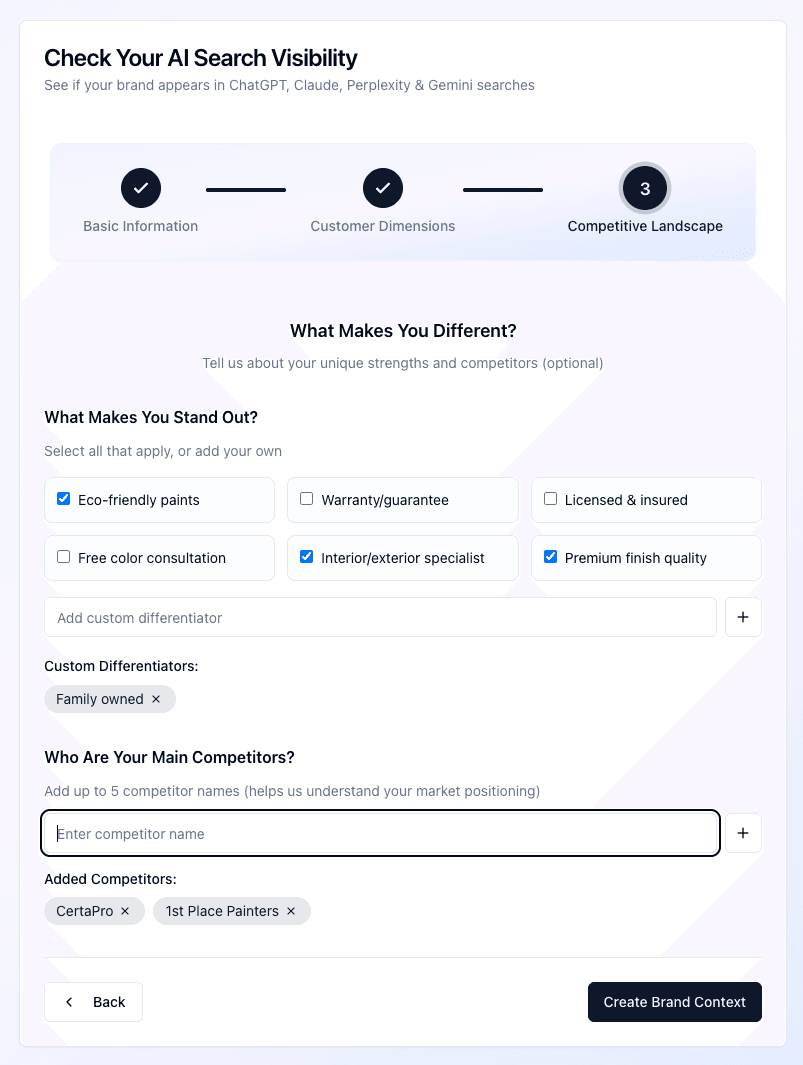 Step 3: Enter differentiators and competitors
Differentiators
Differentiators are the unique qualities, specialties, or selling points that set your business apart. They're the things you'd want AI assistants to mention when recommending your business.
You'll see suggested differentiators based on your category. Select any that apply, or add your own custom differentiators.
Examples of good differentiators:
- "Family-owned"
- "Specializes in electric vehicle repairs"
- "Award-winning customer service"
- "Same-day delivery available"
- "Organic and locally-sourced ingredients"
Competitors
Enter up to 5 competitor names. This helps AI Biz Wiz understand your market positioning and generates competitor-anchored queries like "Is [competitor] good? What are some alternatives?"
Create Your Brand
Once you're satisfied with your entries, click the button to create your brand. Your brand will be added to your dashboard, and your first visibility scan begins automatically.
What Happens Next
After creating your brand, you'll be redirected to your brand's detail page where you can watch your first scan in progress. The scan typically takes 2-5 minutes to complete.
Your Scan Schedule
Creating your first brand also sets your account's scan schedule. Scans run automatically based on your subscription tier:
- Pro/Enterprise: Weekly scans
- Basic: Semi-monthly scans (twice per month)
- Free: Monthly scans
The day of the week for your scheduled scans is set when you create your first brand. New brands you create later will always get an immediate first scan, regardless of your scheduled cadence.
Make Changes & Scan Again
After your first scan completes, if you're not happy with the results, you have the option to adjust your brand details and try again.
Click "Make Changes & Scan Again" on your brand's detail page. Here's what happens:
- Your current brand context is archived
- A copy is created with your existing information pre-filled
- You can modify any field—business name, category, differentiators, or competitors
- The new brand gets a fresh first scan
Note: The previous scan won't count toward your new brand's trend history. This gives you a clean slate to dial in the right configuration.
Managing Multiple Brands
If you need to track multiple businesses or locations:
- Return to your dashboard
- Click "Add Brand" to create additional brands
- Each brand tracks its visibility independently
- Switch between brands from your dashboard
The number of active brands you can have depends on your subscription tier.
How AI Biz Wiz Works: Tutorial Series
- Creating Your First Brand (You are here)
- Running a Visibility Scan
- Analyzing Scan Results
- Tracking Visibility Trends
- Understanding Differentiator Coverage